
Set aside time to study. Lock out distractions with a physical QR key.
Choose a study goal and a session length (from 1 to 360 minutes, or a 25-minute default). On supported devices, block selected distracting apps and optionally lock the session with a printable QR code kept in another room.
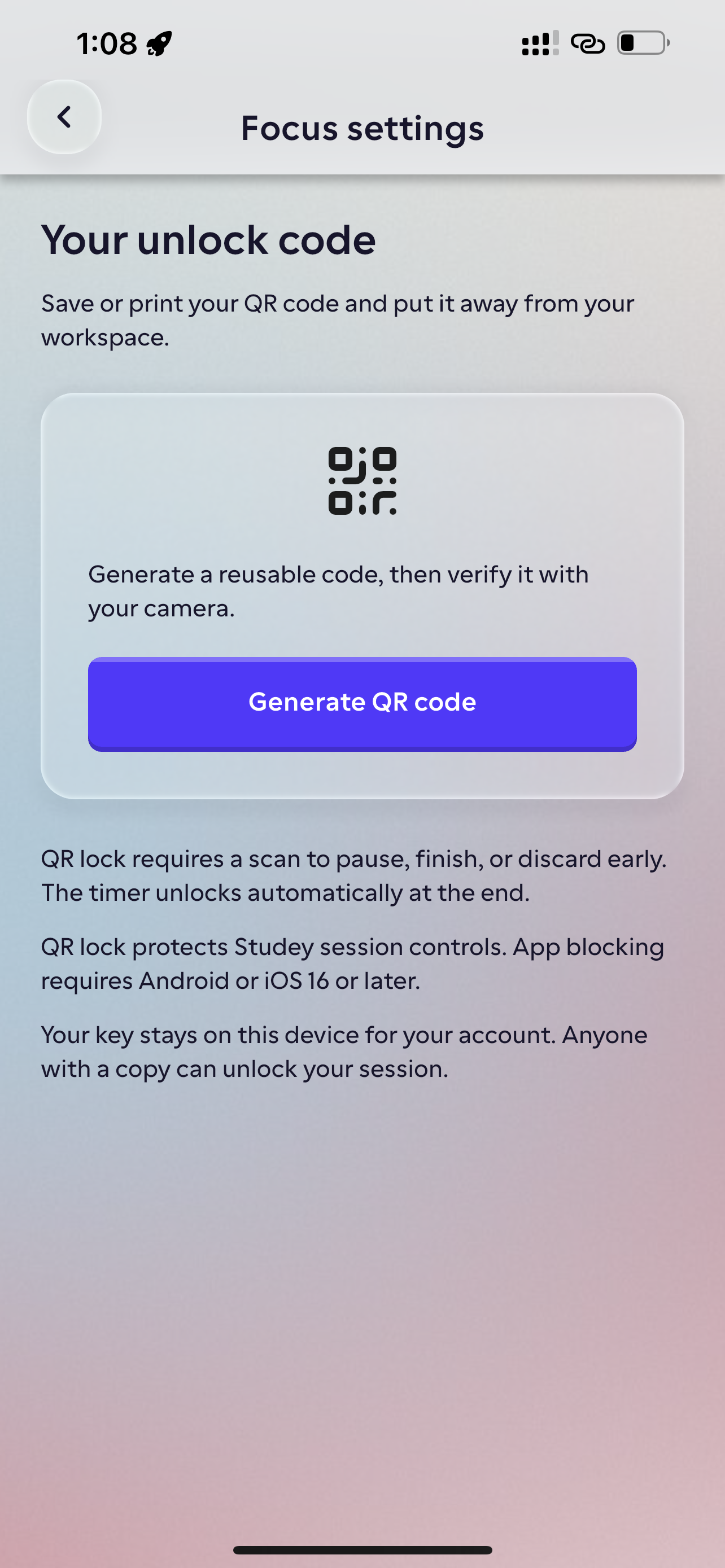
Physical QR lock + platform app blocking inside your study app
Focus works standalone or linked directly to the material you are studying. You can generate and print a 32-byte QR lock key and place it away from your desk (for example, on the kitchen fridge); pausing or ending a locked session early requires physically scanning that matching QR code. Android blocking uses an accessibility overlay and requires a verified QR key; iOS 16+ uses Apple’s FamilyControls / Screen Time picker and requires distribution approval.
Plan & availability: The Focus timer, QR lock and supported-device app blocking are available to all learners, including on the $0 Basic plan.
- Standalone or material-linked study timer (1–360 minutes) with local focus journal
- Printable 32-byte physical QR lock that requires scanning to pause or end early
- Foreground app blocking on supported Android and iOS 16+ devices
- Completed session history and focus minutes tracked alongside your study streak
How focus & app blocking works in Studey
1. Link a study material or set a standalone goal
Start Focus directly from a PDF, notebook or course you are studying, or set a custom session duration from 1 to 360 minutes.
2. Select distracting apps & print your QR key
On supported mobile devices, select the social or video apps to block. Print or store your QR key away from your workspace so ending early requires physically walking over to scan it.
3. Finish the session to release apps automatically
When the timer completes, app blocks release automatically and your completed minutes are recorded in your progress view.
Questions about focus & app blocking
- Can Studey block distracting apps while I study?
- On Android, you can select apps after enabling Studey Focus in accessibility settings. A verified QR key is required for blocking. On iOS 16 and later, blocking uses Screen Time and requires Apple distribution approval. Availability varies by platform and release.
- Does Focus block every app and notification?
- No. It targets selected foreground apps on supported devices. Essential apps remain available. It does not stop background notifications or audio, filter individual websites or control your other devices.
- How does QR lock work?
- Generate a QR key, save or print it somewhere away from your workspace and scan it to verify it. A locked session needs the matching scan to pause or end early. The block releases automatically when the timer finishes. This is a voluntary focus aid, not an unbreakable device lock.
- Do I need a document to start a focus session?
- No. Start a standalone session with a goal, or link it to material you are studying.